Create Pixel-Perfect SVG Icons
An in-depth handbook on grid geometry, subpixel anti-aliasing mitigation, and optical alignment formulas.
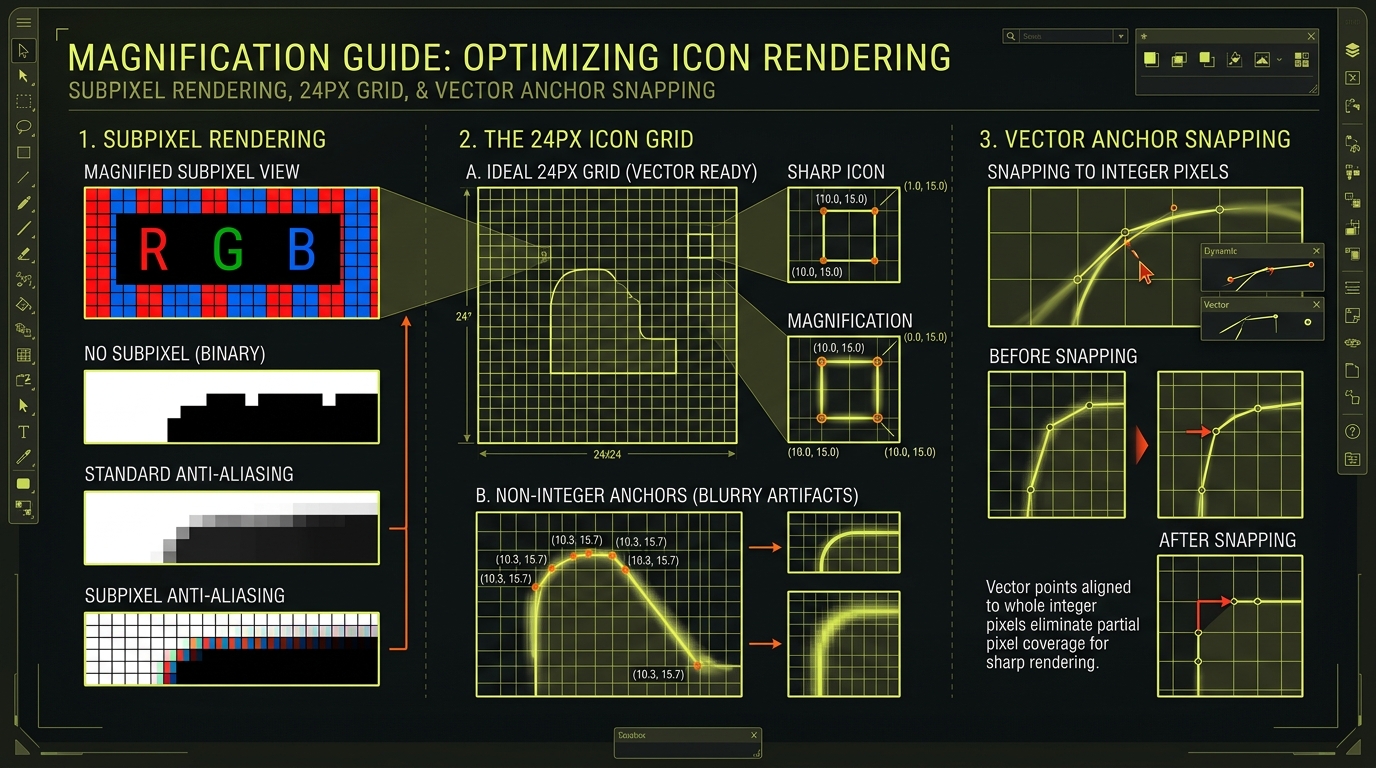
1. Why Do My SVG Icons Look Blurry?
SVG (Scalable Vector Graphics) coordinates can technically support infinite decimal precision. However, computer displays are made of physical, discrete pixel grids. When an SVG path coordinates sit on a fractional index (e.g. `x="12.3"`), the browser cannot light up "0.3 of a pixel."
To simulate this fractional placement, the rendering engine uses **anti-aliasing**—averaging the color across adjacent pixels. While this is great for smooth curves, it makes straight horizontal and vertical lines look blurry, soft, and unpolished.
2. Snapping Coordinates to the Bounding Grid
The industry standard grid size for system interface icons is **24x24 pixels**. This canvas should contain a 2px internal safety margin (meaning the active area is restricted to 20x20 pixels).
When drawing line segments, rectangles, or circles, coordinates should align to exact integer values (e.g. `12.000` instead of `12.482`). This keeps lines perfectly aligned with the display grid, resulting in crisp borders.
3. The 0.5px Offset Rule for 1px Strokes
In SVG rendering, strokes are centered on the vector path line. A 2px stroke centered on path `x="10"` will fill 1px to the left (9px to 10px) and 1px to the right (10px to 11px). Since these edges end on whole numbers, the line remains sharp.
However, if you apply a **1px stroke** centered on the integer path `x="10"`, the stroke splits into two halves of `0.5px` (from 9.5px to 10.5px). This forces the browser to anti-alias across two pixels, creating a fuzzy, 2px wide line instead of a sharp 1px line.
The Offset Solution: When using odd stroke widths (like 1px or 3px), offset your path coordinate by `0.5px` (e.g. `x="10.5"`). This shifts the outer boundaries of the stroke onto whole integer positions, keeping the line razor-sharp.
4. Balancing Optical Weight Geometrically
Different shapes containing the exact same pixel dimensions carry varying visual weight. If you size a circle, triangle, and square to the same bounding box, they will look unbalanced. Squares will look too large, and triangles will look too small.
To solve this, establish shape-specific safety margins within your grid system:
- Squares/Boxes: Restrict to the inner 18px boundary.
- Circles/Ovals: Stretch further out to the 20px boundary.
- Triangles/Diagonals: Stretch completely to the outer 22px active margin.
- Visual Center: When centering asymmetric shapes (like a right-facing play arrow), align by its **optical center of gravity** rather than its geometric bounding box center.
5. SVG Clean-Up Before Handoff
Before checking your SVG icons into a design system codebase, clean up the source code:
<!-- Optimized pixel-perfect code example -->
<svg viewBox="0 0 24 24" fill="none" stroke="currentColor" stroke-width="2">
  <rect x="3" y="3" width="18" height="18" rx="2" />
  <line x1="9" y1="21" x2="9" y2="3" />
</svg>
Notice the absence of decimal places in the attributes. This keeps the vector markup highly readable, responsive, and performance-friendly.
Summary Rules
- Coordinate Alignment: Keep path coordinates snapped to integer grid numbers.
- Odd Stroke Offset: Offset 1px strokes by `0.5px` to align stroke boundaries with the pixel grid.
- Optical Adjustments: Size shapes visually rather than relying solely on bounding box coordinates.
- Clean Code: Strip editor guides, metadata layers, and empty groups before committing files.